How to Zoom In and Out in CapCut
You know that oddly specific kind of rage when you’re editing a video and your brain is like, “Just… zoom in. Like a normal person.” And CapCut is like, “Absolutely. Which of the 47 zooms did you mean?”
Because here’s the thing: zoom effects look simple when you watch them. They feel cinematic. Intentional. Like you planned your life.
But when you’re the one editing? Suddenly you’re pinching your screen like you’re trying to unlock a secret level in a mobile game.
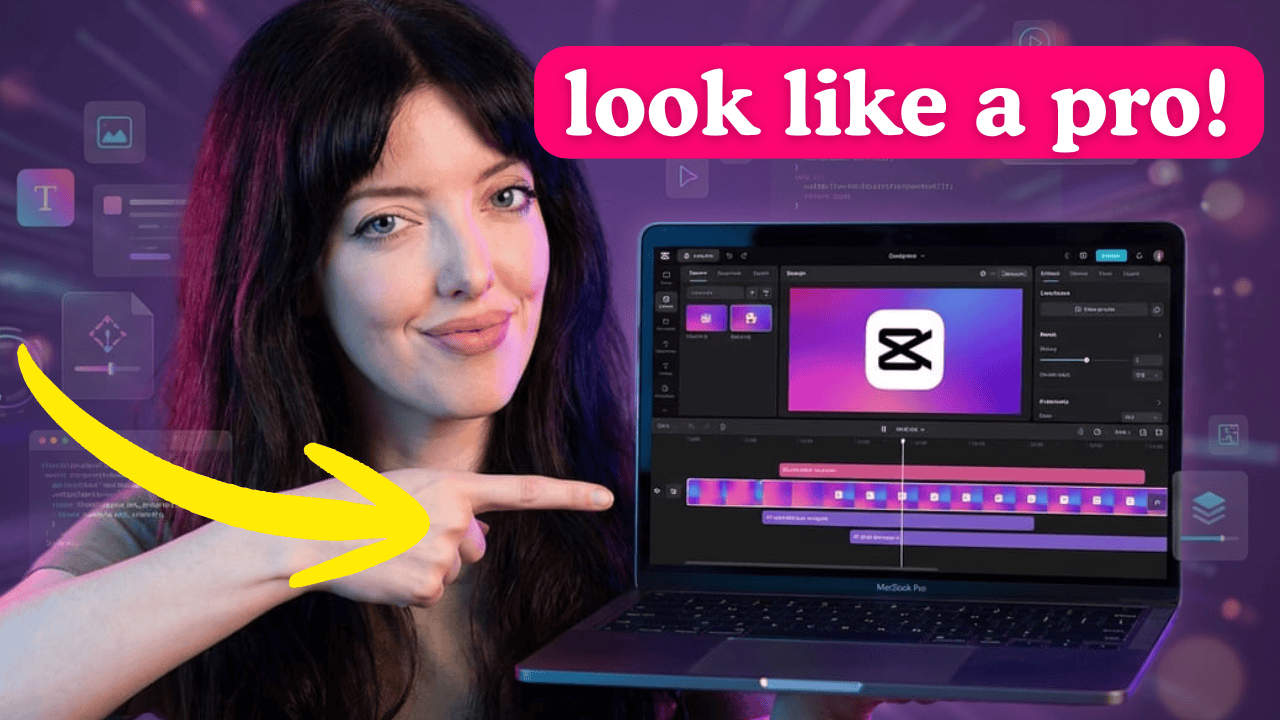
Good news: zooming in and out in CapCut is genuinely easy once you know the two methods. And in my video tutorial, “CapCut Tutorial: How to Zoom In and Out ” I walk you through both so you can pick the one that fits your style and your editing brain.
How to Zoom In and Out in CapCut Tutorial
Watch the quick, easy tutorial now:

Try CapCut Pro for Free
Capcut Pro Free Trial Coupon – For a Limited Time!
Why zoom matters more than people realize
Zoom isn’t just an effect. It’s a directing tool.
It tells your viewer, “Hey, look here.” It adds emphasis without you needing to add text everywhere like a frantic sports commentator.
A good zoom can:
- highlight a product detail or a screen recording
- punch up a joke or reaction
- make a static clip feel dynamic
- help your pacing feel tighter
- keep attention during talking-head segments
In short, zoom is one of the fastest ways to make your content look more pro without filming anything new.
The two easiest ways to zoom in CapCut
There are two simple approaches to zooming in CapCut, and they serve different purposes.
Method #1: Quick zoom effects for instant emphasis
This is the “I need this part to pop” option.
Perfect for quick reaction moments, emphasizing a key phrase highlighting something on-screen. As well as making a point feel more dramatic (without you having to be dramatic)
It’s fast, clean, and it’s the one most people want when they say, “How do I do that TikTok zoom thing?”
Method #2: Smooth zoom for a polished, cinematic feel using keyframes
This is the “I want it to feel intentional” option.
Perfect for slow zoom-ins during storytelling, zooming out to reveal context, creating a subtle motion effect on still clips and making B-roll feel like it’s moving.
This method gives you more control, and when you do it right, it looks expensive. Like you edited with a tiny film crew in your laptop.
Common zoom mistakes
Be cautious about these things when zooming:
- zooming too far (suddenly we’re in someone’s pores)
- zooming too fast (jump-scare energy)
- zooming without a purpose (motion for motion’s sake)
- inconsistent zoom levels across clips (visual whiplash)
A zoom effect should feel like it’s guiding attention, not like your video tripped and fell.
Watch the video (scroll back up) and you’ll be zooming like a pro in minutes
In “CapCut Tutorial: How to Zoom In and Out (Two EASY Ways!)” I show you exactly:
- where to click
- what settings to use
- how to make the zoom smooth (not janky)
- and when to use each method depending on the vibe you want
So if you’ve ever watched someone else’s video and thought, “How did they make that zoom look so clean?”, babe, go watch the tutorial.
Once you learn these two ways, you’ll use them constantly because they’re simple, they’re effective, and they make your edits look instantly more intentional.
Watch this next: How to Make Text Float Behind a Person in a Video.